
Tunnel Mode (Browser Extension)
Run Test-Lab tests against localhost, staging behind SSO, or VPN-only URLs by relaying traffic through your own browser.
Tunnel Mode
Test-Lab's runners live on the public internet. Out of the box, they can reach any public URL – but they can't reach localhost, your staging environment behind SSO, or anything that's only resolvable from your VPN or office network.
Tunnel mode fixes that. It routes the browser traffic for a single test run through a Chrome extension installed on your machine, so the requests come from your network instead of ours. Anything your browser can reach, the test can reach too.
Tunnel mode is available on the Scale plan. It's disabled by default; enable it per test plan when you need it.
When to use it
Turn on Tunnel mode when the URL you're testing is:
localhostor127.0.0.1– a dev server running on your laptop.- A private IP or internal hostname – staging boxes that only resolve on your corporate DNS.
- Behind a VPN – tools like Tailscale, NordLayer, ZScaler, or a corporate VPN.
- Behind SSO that's IP-locked – sites where production access requires a known office IP.
If your run failed with ERR_NAME_NOT_RESOLVED, ERR_CONNECTION_REFUSED, or ERR_CONNECTION_TIMED_OUT, Tunnel mode is almost always the fix.
Install the extension
Install Test-Lab.ai Tunnel from the Chrome Web Store:
After installing, click the extension icon in your toolbar and sign in with the same account you use on test-lab.ai. You'll see a green Connected status when the relay is active.
Enable Tunnel mode for a test plan
Once the extension is installed and connected, turn on Tunnel mode on the test plan you want to route through your browser:
- Open Test Plans in the admin dashboard.
- Click New Test Plan or Edit an existing one.
- Expand Advanced Settings.
- Check Tunnel mode (browser extension) at the bottom of that section.
- Save the plan.
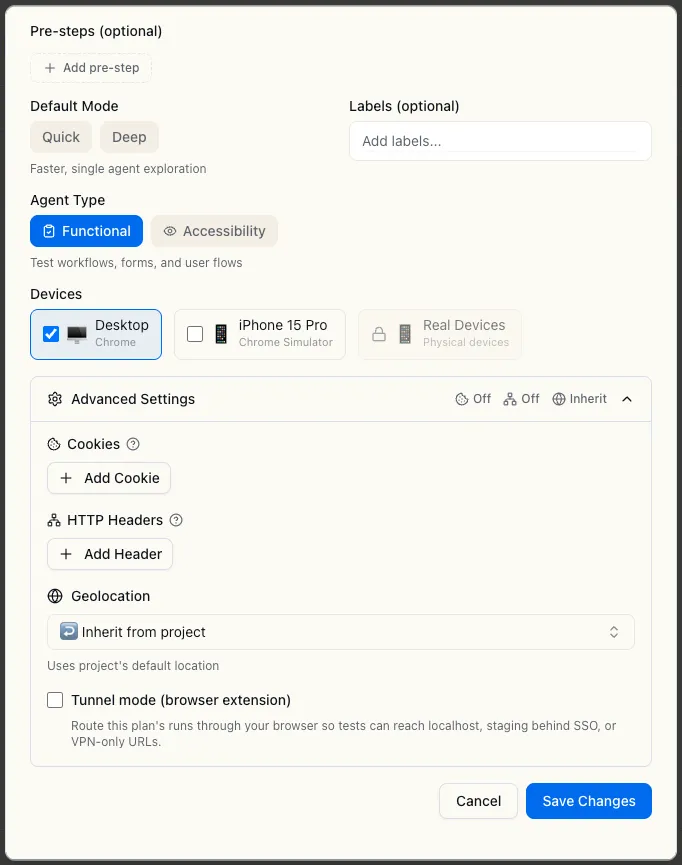
Every run of that plan will now go through your browser instead of our public runners. You can leave the extension running in the background – it only relays traffic for tests that explicitly request it.
The browser running the extension must be open while the test runs. If you close Chrome or put your laptop to sleep mid-run, the relay drops and the test fails. For unattended scheduled runs, keep the browser running on a always-on machine.
How it works
When a test plan with Tunnel mode enabled runs:
- Our runner spins up Playwright like normal.
- Instead of dialing the target URL directly, Playwright forwards each HTTP(S) request to a relay running on your machine.
- The Chrome extension's service worker receives the relayed request and re-issues it from your browser. The destination server sees a request originating from your network.
- The response (status, headers, body, cookies) is streamed back to Playwright.
The result: your test runs against URLs that only your machine can reach, while the AI agent and screenshots stay on our infrastructure.
Privacy
The extension only relays traffic for test runs you explicitly authored. Specifically:
- It does not read or modify your normal browsing.
- It does not access cookies from your real browser profile (relayed requests run with
credentials: "omit"). - The set of cookies it forwards is exactly the set your test plan configures – nothing more.
- All relay traffic flows over an authenticated WebSocket between your browser and our infrastructure; nothing is sent to third parties.
- The extension only activates when you have a test plan running with Tunnel mode enabled.
You can disconnect the extension at any time from its popup, or uninstall it like any other Chrome extension.
Troubleshooting
"Tunnel relay unreachable" or the run hangs
- Check the extension popup shows Connected (green dot).
- Make sure the browser window is open and focused on a normal tab (Chrome throttles background workers when the entire browser is minimized for long periods).
- Click Reconnect in the popup and re-run the test.
Login/session cookies aren't sticking
- Make sure you've configured the same cookies/headers on the test plan that your dev environment expects.
The extension says "Sign in required"
- Open the popup and click Sign In. The extension uses the same account as test-lab.ai.
- If you've recently rotated credentials, sign out and back in to refresh the auth token.