
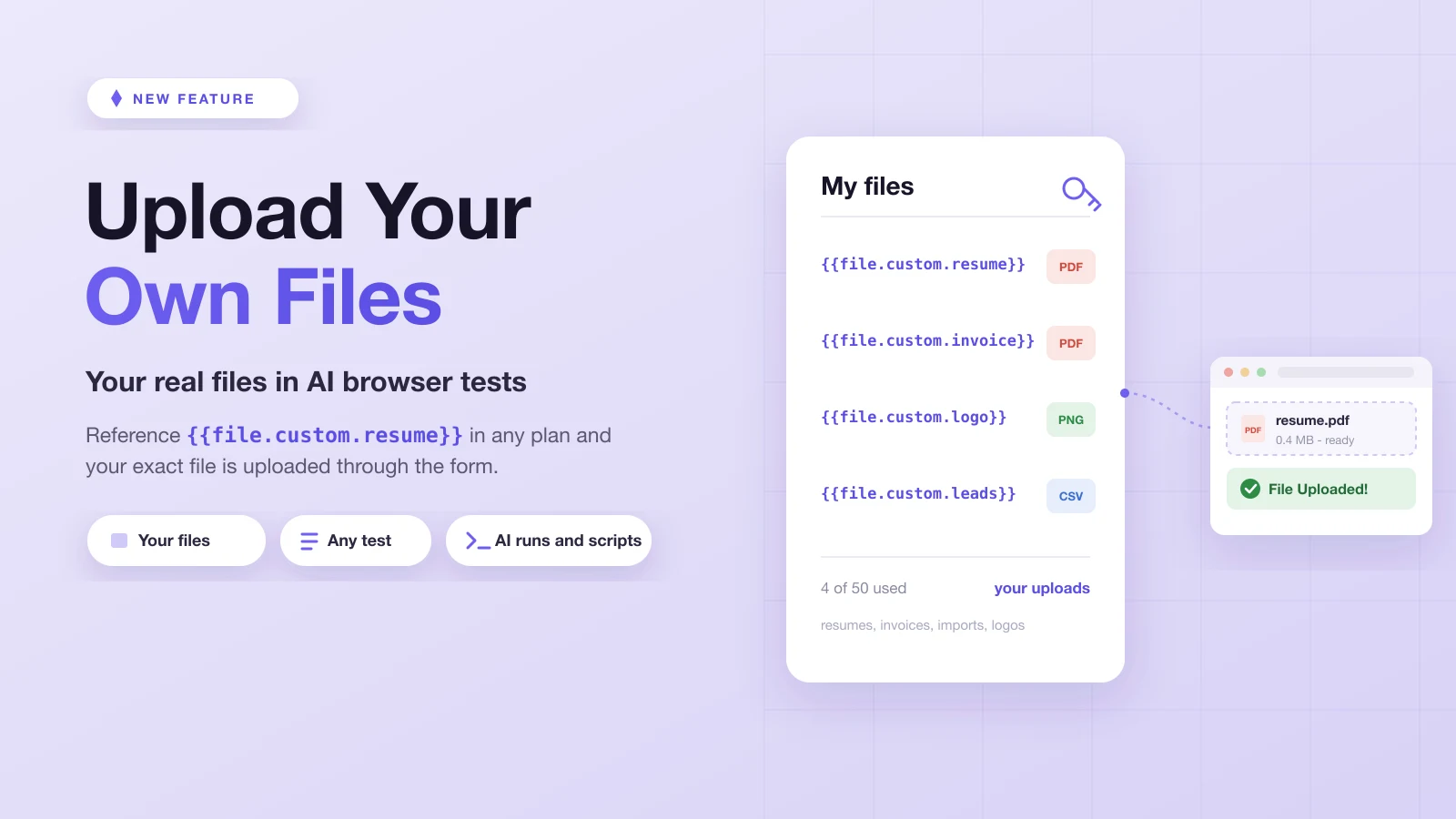
You can now upload your own files to Test-Lab and use them in any test.
A while back we shipped a built-in library of real files: reference {{file.pdf}} in a plan and a valid PDF gets uploaded through the picker. That covers most upload tests, where any real file of the right type will do. But some flows do not care that a file is a valid PDF. They care that it is this PDF: the invoice layout your parser was built around, the CSV your importer keeps choking on, the exact resume a customer attached when they hit the bug.
For those, a generic fixture is not enough. So now you can bring your own.
What we shipped
Upload a file once, give it a short reference name, and Test-Lab hands you a token:
{{file.custom.resume}}Drop that token into any test the same way you use the built-in pack. It points at your file, and at run time the file is uploaded through the picker for real. Custom files are a Scale plan feature.
How to use it
In an AI run, write what you want in plain language and use the token where the file goes:
Go to the careers page, open the application form, and upload
{{file.custom.resume}} as the CV. Submit, then confirm the
"Application received" message appears.
The same token works inside a saved or uploaded Playwright script:
await page.setInputFiles('input[type=file]', '{{file.custom.resume}}')Like the built-in pack, the token stays a token until the run executes, so nothing is uploaded from your machine when the test runs. The run report shows which file each reference resolved to, so you can confirm exactly what went up.
It works everywhere your other tests do
Custom files behave like the rest of your test data. They resolve the same way in:
- AI runs, where the agent is told which of your files are available and uses the token itself
- Saved and uploaded Playwright scripts, right before
setInputFiles - Multi-step pipelines, shared across every step in the run
- Runs kicked off from the CLI or an AI agent over MCP
Generate a Playwright script from a passing AI run and the custom file comes along with it, so the script you keep uploads the same file every time it runs in CI.
Managing your files
Open Manage test data, switch to the Files group, and pick My files. From there you can upload a file, give it a reference key, copy its token, download it to double-check, or delete it. Deleting a file stops its token from resolving in later runs.
A few practical limits:
- Up to 50 files per account, 50 MB each
- Common formats are supported: images (png, jpg, jpeg, gif, webp, heic), documents (pdf, docx, xlsx), audio (mp3, wav), video (mp4, webm), archives (zip), and text (txt, csv, json)
- A reference key is a short lowercase name (letters, digits, and underscores), so
resumebecomes{{file.custom.resume}}andinvoice_2026becomes{{file.custom.invoice_2026}}
Built-in or custom: which to reach for
Use the built-in pack when any valid file of a type will do. "Upload a profile picture" or "attach a document" do not need a specific image or PDF, and {{file.png}} keeps the plan free of committed binaries.
Reach for a custom file when the contents matter:
- A document with a known layout your app extracts fields from
- A CSV or spreadsheet shaped exactly like a real import, including the row that used to break
- A specific image you assert against in a visual check, like your real logo
- The exact file from a bug report, so the regression test reproduces the original input
A worked example
Say your app imports contacts from a CSV, and last month a file with a missing column slipped through and corrupted a list. You fix the bug and want a test that proves it stays fixed.
Upload that exact CSV as contacts_bad_column, then write one plan:
Go to Contacts, click Import, and upload
{{file.custom.contacts_bad_column}}. Confirm the page shows a
clear "missing column" error and imports zero rows.
The test now runs the real file that caused the incident, against prod, staging, or a PR preview, with nothing committed to your repo.
Try it
Custom files are live on Scale plans today. Open Manage test data, go to My files, and upload your first file, or type {{file.custom. into any prompt to see what you already have. The test data docs cover the full reference alongside the built-in pack.
Generic files got file uploads into your tests. Your own files get the tests that only your data can cover.