
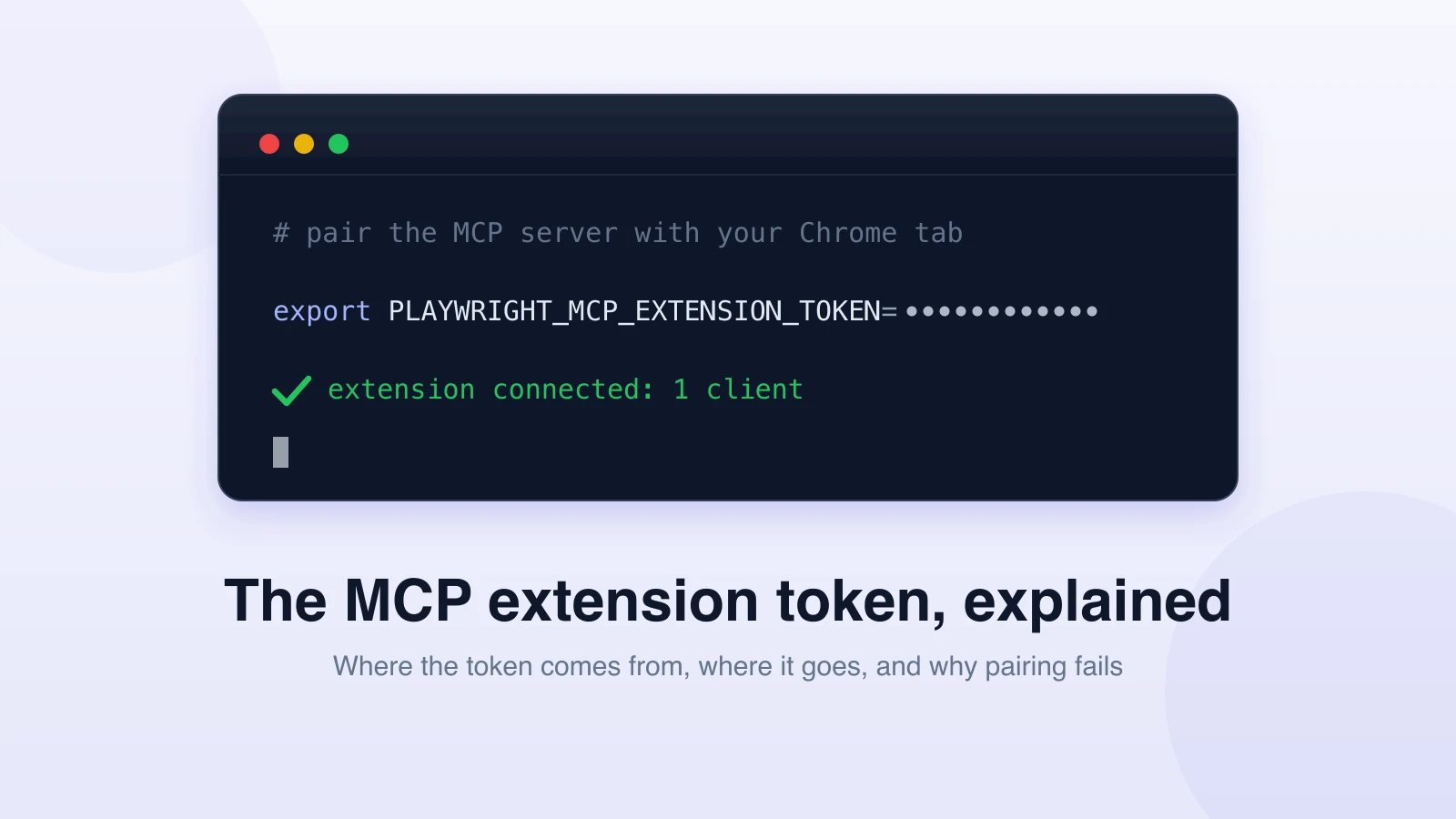
PLAYWRIGHT_MCP_EXTENSION_TOKEN is the environment variable that pairs the Playwright MCP server with the Playwright Chrome extension when you run the server in extension mode. The extension generates the token and displays it in its UI; you paste it into the env block of your MCP client config. When the values match, the server attaches to your real, logged-in browser tabs without asking for approval every time.
Here is how the pieces fit, and what to check when the pairing fails. For background on the server itself, start with what Playwright MCP is.
What extension mode is, in one minute
Playwright MCP normally launches its own browser: fresh profile, no cookies, no sessions. Extension mode flips that. Pass the --extension flag and the server drives a tab in your existing Chrome or Edge instead, through a small extension installed from the Chrome Web Store.
That buys you what Microsoft's docs call out: reuse of authenticated sessions (SSO and 2FA logins you already completed), pages that depend on other installed extensions, and tabs you already have open.
The catch: a process outside the browser is now allowed to control your personal browser. That needs a handshake, and the handshake is the token.
What PLAYWRIGHT_MCP_EXTENSION_TOKEN actually does
Two pieces have to trust each other: the extension inside Chrome, which holds the keys to your tabs, and the MCP server your agent talks to. The token is how the server proves you authorized it.
Three properties matter in practice:
- The extension generates it, not you. Click the Playwright Extension icon and copy the PLAYWRIGHT_MCP_EXTENSION_TOKEN value it displays.
- It is unique to your browser profile. Microsoft's docs note it is tied to the profile the extension runs in; a token from your work profile will not pair with your personal one.
- It is optional, but you want it. Without it, the first browser interaction opens a confirmation page where you pick which tab the agent may control. With it, connections are approved automatically.
The working setup
As of mid-2026, this is the shape that works:
- Install the Playwright Extension from the Chrome Web Store (Chrome or Edge).
- Click the extension icon and copy the PLAYWRIGHT_MCP_EXTENSION_TOKEN value it shows.
- Add the server to your MCP client config with the
--extensionflag and the token inenv:
{
  "mcpServers": {
    "playwright": {
      "command": "npx",
      "args": ["@playwright/mcp@latest", "--extension"],
      "env": {
        "PLAYWRIGHT_MCP_EXTENSION_TOKEN": "<value copied from the extension UI>"
      }
    }
  }
}
Restart your MCP client, ask the agent to open a page, and the extension icon should show an active client instead of a permission prompt.
Why your Playwright MCP extension token is not working
Almost every failure in the issue tracker falls into one of five buckets:
- Wrong browser profile. The token is per-profile. If Chrome opened a different profile than the one you copied from, pairing fails. Copy the token from the profile that owns the extension.
- Stale token. Reinstalling the extension or resetting its state can leave your config holding an old value. Re-copy the current token from the extension UI and restart the client.
- The server is not in extension mode. If
--extensionis missing fromargs, the token is dead weight and the server launches its own clean browser. People stare at the env block for a long time before noticing the missing flag. - Version drift. The Chrome Web Store auto-updates the extension while your config may pin an older
@playwright/mcp. If pairing breaks after working fine, update both sides before debugging anything else. - The bridge never finds the server. There are open reports of the extension showing "No MCP clients are currently connected" even with matching tokens. Restart both ends and make sure only one server instance is running; a stale second process is a classic cause.
If the connection dialog appears even though the token is set, treat it as a mismatch: one of the first three buckets above.
When extension mode is the right call, and when it is not
Extension mode is for work that genuinely needs your browser: debugging behind an SSO wall, poking at a page that only misbehaves with your extensions installed, one-off automation on a tab you already have open. We compared it with the other real-browser option in Chrome MCP vs Playwright MCP.
For repeatable testing it is the wrong tool. Your logged-in profile carries state (cookies, local storage, that half-finished cart) that makes run two behave differently from run one. And the blast radius is your actual browser: every account you are signed into is reachable by the agent. A clean context, seeded with just the auth the test needs, wins for anything that runs twice.
A hosted setup removes the whole problem. With test-lab's MCP server, your agent creates and runs tests against browsers we manage: no extension to install, no token to copy, no profile to babysit. Every run starts clean, with traces and screenshots captured for you.
Want to see it? Point your agent at npx -y @test-lab-ai/mcp and ask it to run a test.
FAQ
What is PLAYWRIGHT_MCP_EXTENSION_TOKEN?
It is the environment variable that authenticates Playwright MCP's extension mode. The Chrome extension generates a profile-unique token and shows it in its UI; paste that value into the env block of your MCP config to skip the manual approval dialog.
Why is my Playwright MCP extension token not working?
The usual causes: the token was copied from a different Chrome profile, the value is stale after an extension reinstall, the --extension flag is missing from the server args, or the extension and the @playwright/mcp package have drifted apart. Re-copy the token, confirm the flag, update both sides, restart the MCP client.
Do I need the token to use Playwright MCP extension mode?
No. Without it, the first browser interaction opens a page where you approve the connection and pick a tab by hand. The token skips that dialog, which matters once anything runs unattended.