
Free browser test recorder for Chrome
Click through your flow once. Get a readable test plan and a Playwright script you can run, schedule and edit.
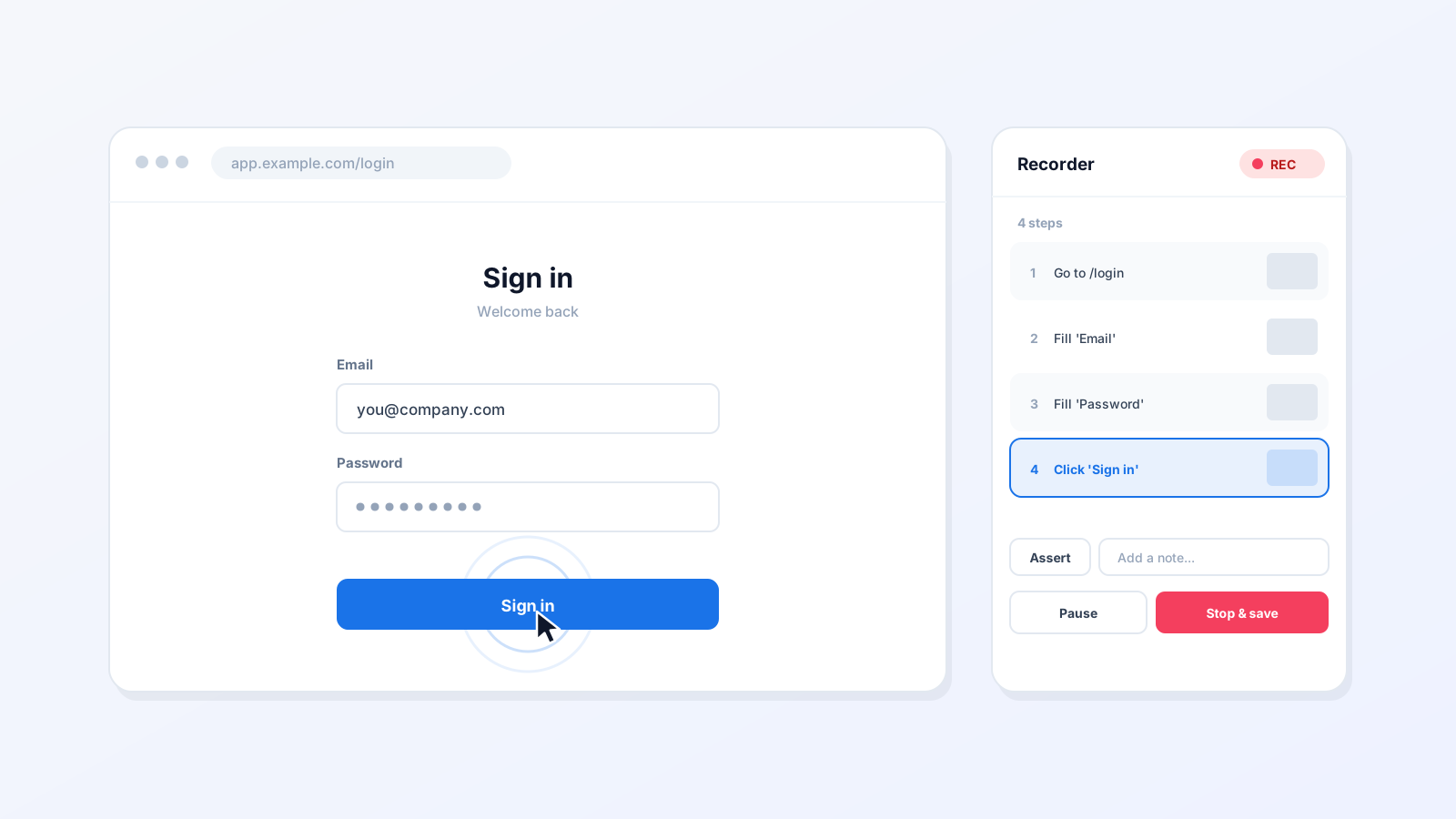
The browser test recorder is a free Chrome extension that watches you use your own app and writes the test for you. Open the page you want to test, hit Record, and click through the flow exactly as a user would. Every click, form entry, dropdown and navigation is captured as a step with its own screenshot, and when you stop you get two things: a test plan in plain English, and a Playwright script. Both are yours to run, schedule, edit or export.
Why record instead of write?
Getting the first test written is the part that stalls test automation. Codegen tools spit out brittle nth-child selectors you have to clean up by hand. Older record-and-playback tools break the moment your app renders inside an iframe or sits behind a login. And writing it from scratch means someone has to translate a flow they already know into code. Recording it in the browser you already use skips all of that.
How it works
- 1
Install the extension
Add it to Chrome from the Web Store. Nothing to configure, and you can record locally without an account.
- 2
Open your app and hit Record
Works on your real, logged-in session, including localhost and staging. A side panel opens and lists the steps as they land.
- 3
Click through the flow
Use the app normally. Add an Assert to check an element is visible, or a Note to leave context for whoever reads the test later.
- 4
Stop and save
You get a test plan and a Playwright script, each step paired with the screenshot taken at that moment, ready to run and schedule.
What it records
Every action lands as a step you can read, reorder or delete before you save.
- Clicks
- Buttons, links, icons and menu items. A click on an icon inside a button is attributed to the button, not the svg, so the step reads like a person describing it.
- Text entry
- Debounced into one step per field. Typing an email address becomes a single Fill step, not thirty keystrokes.
- Dropdowns and selects
- Native selects and custom comboboxes, recorded by the option you actually chose.
- Checkboxes and radios
- Captured as check/uncheck against the labelled control.
- Semantic key presses
- Enter, Tab and Escape are recorded, because they change behaviour. Ordinary typing is not replayed key by key.
- Form submits
- Including submits triggered by Enter rather than a button click.
- Navigations
- Full page loads and single-page-app route changes both land as Go to steps, so the test knows where it is.
- Assertions and notes
- Added by you mid-recording: check an element is visible, or leave a note for whoever reads the test later.
What you get
No selectors to write
Each step is matched by what a user actually sees: role and accessible name first, then labels, placeholders and test ids, with a CSS path only as a last resort. That is the same priority Playwright itself recommends, so the tests survive redesigns.
It handles real apps
Flows rendered inside iframes, journeys that cross several pages, and anything behind a login are all captured. Many recorders quietly drop iframe clicks; this one follows them.
A screenshot for every step
Each captured action stores the screenshot from the moment it happened, so reviewing a recording shows exactly what the page looked like. Password and card fields are masked before the shot is taken.
Real Playwright code you own
The output is an ordinary Playwright script, not a proprietary format. Run it here, or take it and run it in your own CI.
How it picks selectors
A recorded test is only as durable as the way it finds elements. Recorders that reach for nth-child paths produce tests that break on the next redesign. This one walks the same priority Playwright itself recommends, and only falls back down the list when the level above is missing or ambiguous:
- 1. Role and accessible name
getByRole('button', { name: 'Sign in' })How a person (and a screen reader) identifies the control. Survives restyling, DOM moves and class renames.
- 2. Label, placeholder or aria-label
getByLabel('Email')For inputs whose visible label is what identifies them. Resolved from aria-label, aria-labelledby, a linked <label>, or the placeholder.
- 3. Test id
getByTestId('checkout-submit')If your app already ships data-testid (or data-test, data-cy), that wins over anything structural.
- 4. Visible text
getByText('Order complete')For non-interactive content you want to assert on.
- 5. CSS path (last resort)
div.full > input.ui-autocomplete-inputOnly when an element offers nothing else. It is a signal worth acting on: an element with no name here is usually one your users cannot identify either.
Steps recorded inside an iframe additionally carry the chain of frames they were found in, so replay scopes them with frameLocator() instead of guessing.
How it compares
The honest version. All three are free, and codegen and Selenium IDE are good tools; the difference is where they record and what you get back.
| Feature | Test-Lab recorder | Playwright codegen | Selenium IDE |
|---|---|---|---|
| Where it records | The Chrome you already use | A separate browser it launches | The browser you already use |
| Your real logged-in session | Yes | Re-login, or wire up storageState | Yes |
| Clicks inside iframes | Yes, frame-scoped on replay | Yes | Unreliable |
| Screenshot per step | Yes | No | No |
| What you get back | Plain-English test plan + Playwright script | Playwright code | A .side project |
| Locator priority | Role/name, label, test id, text, then CSS | Role/text first | id, XPath, CSS |
| Secrets masked in captures | Yes | n/a (no captures) | n/a (no captures) |
| Runs in CI | Export and run it yourself, or hosted on a paid plan | Your own runner | Via a runner |
| Repairs itself when the app drifts | Yes, on a paid plan | No | No |
| Price | Recorder, plan and script: free | Free, open source | Free, open source |
What people use it for
Get a regression suite off zero
The hardest test to write is the first one. Record your five most important flows in an afternoon, keep the ones worth keeping, and you have a suite that runs on a schedule instead of a backlog ticket that never gets picked up.
Capture a bug the way it actually happened
Reproduce the bug once while recording. The steps and the screenshot at each one become the repro, so nobody has to argue about what was clicked or in what order.
Test an app you did not build
Inherited an internal tool with no tests and no docs? You do not need to read the DOM to test it. Click the flow the way the people who use it do, and the recorder writes down what it saw.
Turn a manual QA pass into an automated one
If someone is already clicking through a checklist before each release, record that pass once. The parts that are stable become scheduled tests; the parts that are not stay manual.
Good to know
The honest limits, so you find out here rather than ten minutes in.
It records semantic actions, not raw mouse movement
Clicks, entries, selects, key presses and navigations are captured. Drag-and-drop, hover-only menus and canvas or WebGL interactions have no meaningful element behind them, so they are not turned into steps.
Video needs an account
Steps and screenshots work signed out and stay in your browser. The session video uploads to your account, so it needs you signed in.
Frequently asked questions
Is the browser test recorder free?
Yes. The Chrome extension is free to install and recording is available on every Test-Lab.ai plan, including the free tier. You can record without an account at all, in which case recordings stay local to your browser.
What does it record?
Clicks, text entry, dropdown selections, checkboxes, form submits and navigations, each stored as a step with its own screenshot. You can also add assertions (check an element is visible) and free-text notes while you record.
Does it work with iframes?
Yes. The recorder injects into every frame and tracks which frame each action happened in, so clicks inside an embedded app are captured and replayed with the right frame scoping. Apps that render their whole UI in an iframe work.
Can it record a flow behind a login?
Yes. It records in your own browser using your existing session, so anything you can reach signed in, it can record, including internal tools, staging and localhost.
Does it generate Playwright code?
Yes. Every recording produces a Playwright script alongside the plain-English test plan. It is standard Playwright, so you can edit it, run it in Test-Lab.ai, or export it and run it in your own pipeline.
How is this different from Playwright codegen or Selenium IDE?
Codegen records in a separate instrumented browser and hands you raw code to clean up. This records in the Chrome you already use, on your real session, and gives you both a readable test plan and a script. It also captures a screenshot per step, follows iframes, and the resulting test can be scheduled and self-healed rather than only run locally.
Are my passwords captured in the recording?
No. Password, card and one-time-code fields are detected and their values are never stored with the step, and they are masked in the screenshot before it is taken. If you use stored credentials, the step references the credential rather than the value.
Can I record a video of the session?
Yes, when you are signed in. Tick the video option before you hit Record and the recording page will include a playable video of the session alongside the steps.
Add to Chrome - it is free
Record any web flow in Chrome and turn it into a test plan and a Playwright script. Free extension: no code, no selectors, and it handles iframes, logins and multi-page journeys.